Computer Specs for Children’s Coding Lessons
RAISE GENIUS · PARENTS & SCHOOLS
Computer Specs for Children’s Coding Lessons
Computer specs for coding depend on the course, the software and the other applications running during a live lesson. The school’s article recommends a mid-range computer for Minecraft Education, Roblox Game Maker and Unity3D. Start by checking the machine already at home rather than buying a replacement without a course-specific assessment.
Contact the teamOn this page
Five checks for computer specs for coding
1. Processor and platform. The school’s published Windows example is an Intel Core i5 or equivalent, with its opening recommendation naming generation 13 or later. The Mac examples are Apple Silicon M1 Pro, M2, M3 or M4 and later. These are the school’s practical examples, not a claim that a product name alone determines compatibility.
2. Memory for simultaneous work. The school recommends 16-32 GB RAM for its computer-based coding and game-making lessons, and at least 16 GB for the listed Mac examples. Operating-system tasks, the learning program, screen sharing and other windows all share memory. This is school guidance for a lesson setup, not Minecraft Education’s official minimum requirement.
3. Camera and sound. A webcam and microphone let the teacher hear answers and follow participation. If the computer lacks a built-in camera, the source suggests a USB webcam as an option.
4. Internet stability. A reliable connection matters alongside headline speed. The source suggests a wired connection or placing the router near the learning area. Test the actual lesson setup rather than assuming a fast advertised plan guarantees a stable call.
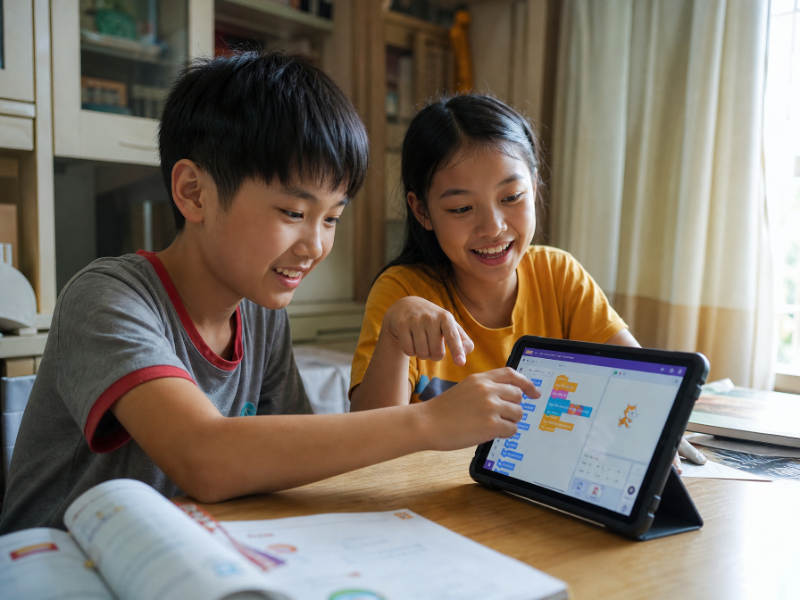
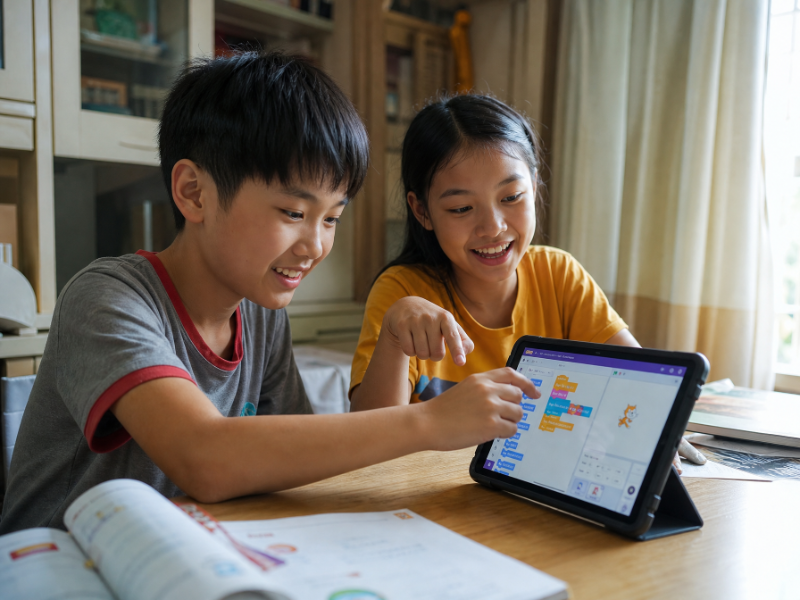
5. Software and device fit. Ask which applications, permissions and equipment the chosen course needs. Some Minecraft block-coding activities can use an iPad or supported tablet; that does not make a tablet a universal substitute for a desktop creation tool.
School recommendations and manufacturer requirements are different
The source gives a generous working recommendation because three-dimensional learning, live communication and multitasking can create a larger load than opening one application alone.
Minecraft Education publishes its own platform and system requirements. Consult that official page and the school’s course-specific advice together. Do not treat the school’s 16-32 GB working recommendation as a quoted vendor minimum, or mix Minecraft Education requirements with a different Minecraft edition.
Roblox game creation and Unity3D lessons use computer-based authoring tools in the source description. Ask the team to check the intended version and workflow before choosing a device. A successful installation alone is not a full live-lesson test.
Computer specs for coding across learning stages
Ages 6-7: children may need initial help signing in and using a mouse or touchscreen. The source describes Minecraft Education from age six, with small live groups. Confirm device suitability and age-appropriate access to the communication platform with the team.
Ages 8-9: learners may begin managing windows and basic tasks themselves, with a parent available for occasional help.
Ages 10-12: longer projects and several open windows can reveal the limits of an older machine. Try the learning program, call and browser together.
Lower and upper secondary: text programming and projects may introduce different workloads or a physical microcontroller. Hardware needs depend on the task; ask what is required rather than assuming age alone sets a specification.
A short test before buying or enrolling
Find the processor name, memory amount and operating-system version in the computer’s system information and write them down. Ask the team which exact learning application to try.
Open that application alongside a video call and the normal lesson windows. Notice delays, audio problems, disconnections or difficulty sharing a screen. Send the specifications and observations to the team through the agreed contact route.
The related parent-support and online-course-choice guides explain teaching and home arrangements. The source profile mentions fifteen years of school activity and KMUTT incubation; those remain source statements, not a new audit. The practical decision is whether this learner’s current device supports the proposed lesson.
Frequently asked questions
Can an iPad replace the computer?
For some Minecraft Education block-coding activities it may be suitable, subject to the current course and supported device. The source recommends a Windows computer or laptop as the main option and describes Roblox Game Maker and Unity3D as computer-based workflows. Confirm before paying or buying.
Can a low-memory older computer be used?
The school’s published lesson recommendation is 16 GB RAM, preferably 32 GB, with a mid-range CPU such as an i5 or equivalent. This is its practical multitasking guidance, not a vendor minimum. Ask the team to assess and test the existing computer.
Is a webcam needed?
The source recommends a webcam and reliable internet for live participation and end-of-lesson explanations. A USB camera is an option if the computer has none; confirm the complete setup with the teacher.
Contact and related pages
Tell the team about the learner or organisation, relevant experience and the intended learning purpose. Confirm the current programme, equipment, availability, schedule and fees before booking.
Contact Raise Genius School service overview
- How Much Parent Support Does Online Coding Need?
- Choosing Online Coding for Kids by Age & Readiness
- Online Robotics Learning When No Class Is Nearby
- Robotics for Small Schools with Limited Budgets
- Choosing Robotics Teacher Training for Your School
- Planning School STEM Robotics Camps & Budgets
- Starting a School Robotics Classroom: People Before Kits
- Primary Computing Lessons: From Mechanisms to Code
- Helping a Child Become a Programmer: Build Foundations
Course-selection guide · Robotics portfolio projects · Competition preparation · Team advice and coaching · Course guide · General FAQ
Related services: School robotics camps · STEM activity stations
Related reference: Minecraft Education system requirements